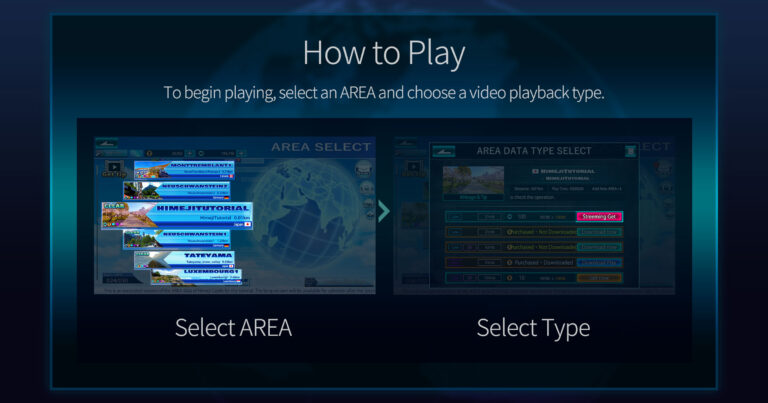
If this is your first time, please first select an AREA, then tap
“Streaming Get” → “Streaming Play” in that order.
Streaming Play can be played for free.
The Mileage required for “Streaming Get” can be earned for free by playing an AREA.
About Play Styles
In this app, videos play according to your body movements.
Also, if you select “View Only Start” when starting AREA Play, you can enjoy viewing without moving your body.
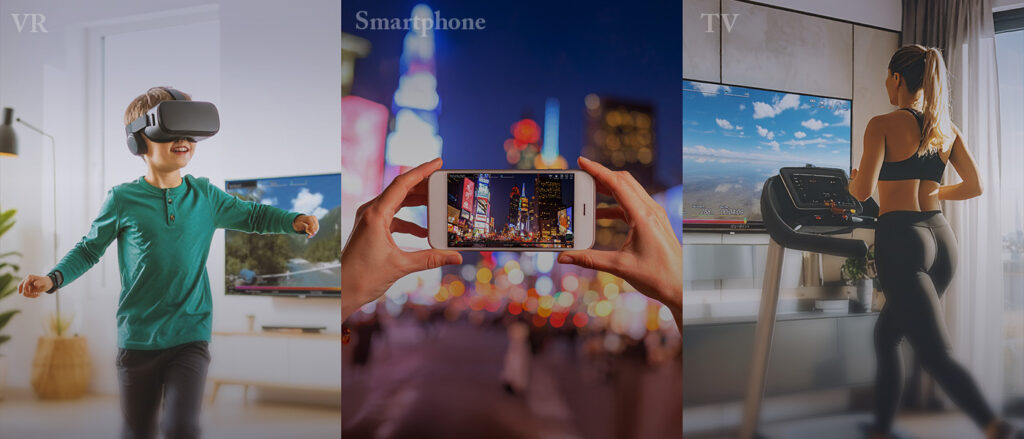
You can choose from the following play styles.
Please enjoy the experience in the style that best suits your environment and purpose.
Play Style Introduction and Setup Guide
Please refer to the instruction videos, images, and help below,
and choose the play style that best fits your environment and purpose.
The setup method for each style is explained clearly.
・Play on TV
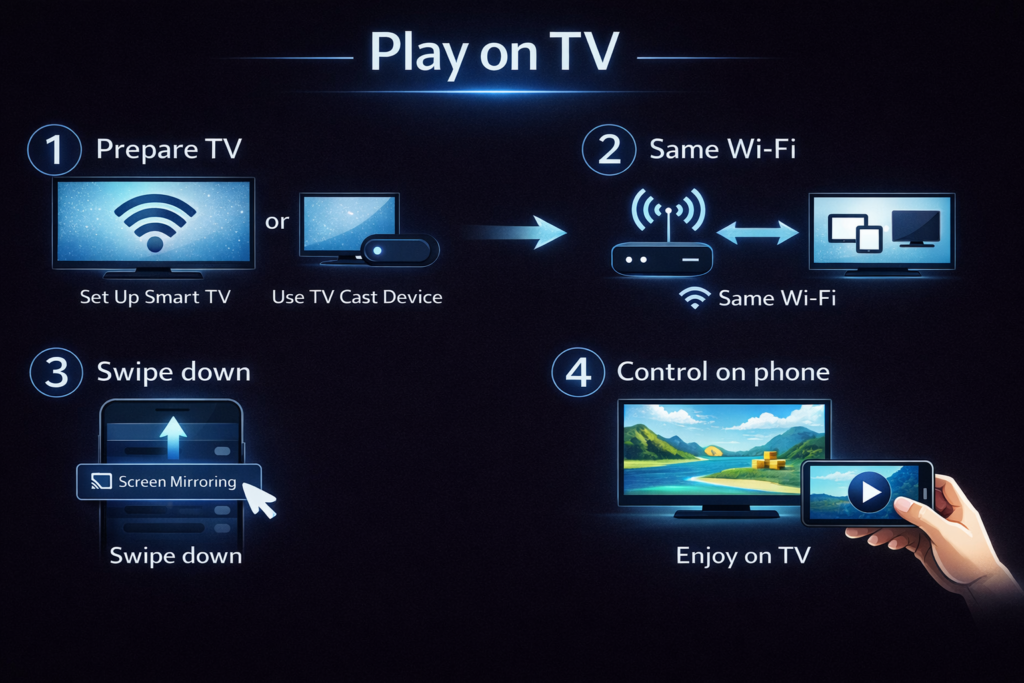
How to Play by Casting to TV
① Prepare TV
If your TV supports smartphone screen casting (screen mirroring), no additional equipment is required.
If you are unsure whether it is supported,
open “Screen Mirroring” on your smartphone and check whether your TV name appears.
If the TV does not appear, please prepare a TV casting device.
Turn on the TV and make sure the screen is ready for display.
② Same Wi-Fi
Please connect both your smartphone and TV to the same Wi-Fi network.
If they are connected to different Wi-Fi networks, screen mirroring cannot be used.
③ Screen Mirroring
Swipe down from the top of your smartphone screen.
Select Screen Mirroring.
From the displayed list, select your TV.
④ Start Playing
Your smartphone screen will be displayed on the TV.
Move your body while holding your smartphone or wearing an Apple Watch.
The screen will advance automatically according to your movements.
If you select “View Only Start”, you can watch without exercising.
All operations are performed on the smartphone.
Please enjoy the experience on a large TV screen.
If the screen does not display properly
If the screen does not appear on the TV
Please check that both the smartphone and TV are connected to the same Wi-Fi.
Check that the TV power is on and the correct input source is selected.
Turn screen mirroring off once, then turn it on again. If it still does not display, please use a TV casting device.
・Play with VR Goggles
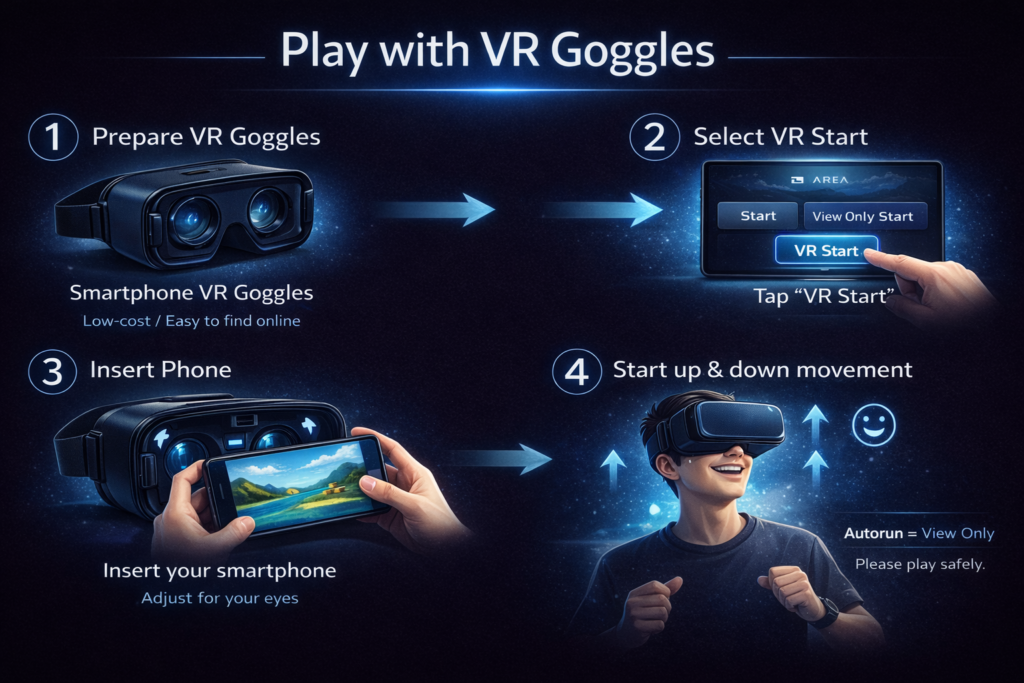
How to Play with VR Goggles
① Prepare VR Goggles
Please prepare VR goggles compatible with smartphones.
Affordable options are available at online shops.
Please choose one that fits you.
② Select “VR Start”
When you select an AREA, the play start screen will appear.
The following buttons are displayed on the screen:
・Start: Play in standard display (smartphone screen / TV cast)
・View Only Start: Play video only without operation
・VR Start: Play in VR display for VR goggles
If you use VR goggles, please select “VR Start”
③ Set the Smartphone into the Goggles
Insert your smartphone into the VR goggles.
Adjust the lens position and width to fit your eyes.
Once the image is clear, preparation is complete.
④ Wear the Goggles and Start Exercising
While wearing the goggles, perform light up-and-down movements.
The video advances according to your body movements.
If you select Autorun, you can watch the video only,
similar to normal video viewing, without moving your body.
Safety Notes
Please ensure there is sufficient space around you.
Do not use the goggles if there is a risk of falling or collision.
Please use according to your age and physical condition. Use at your own responsibility and prioritize safety at all times.
・Play using smartphone only
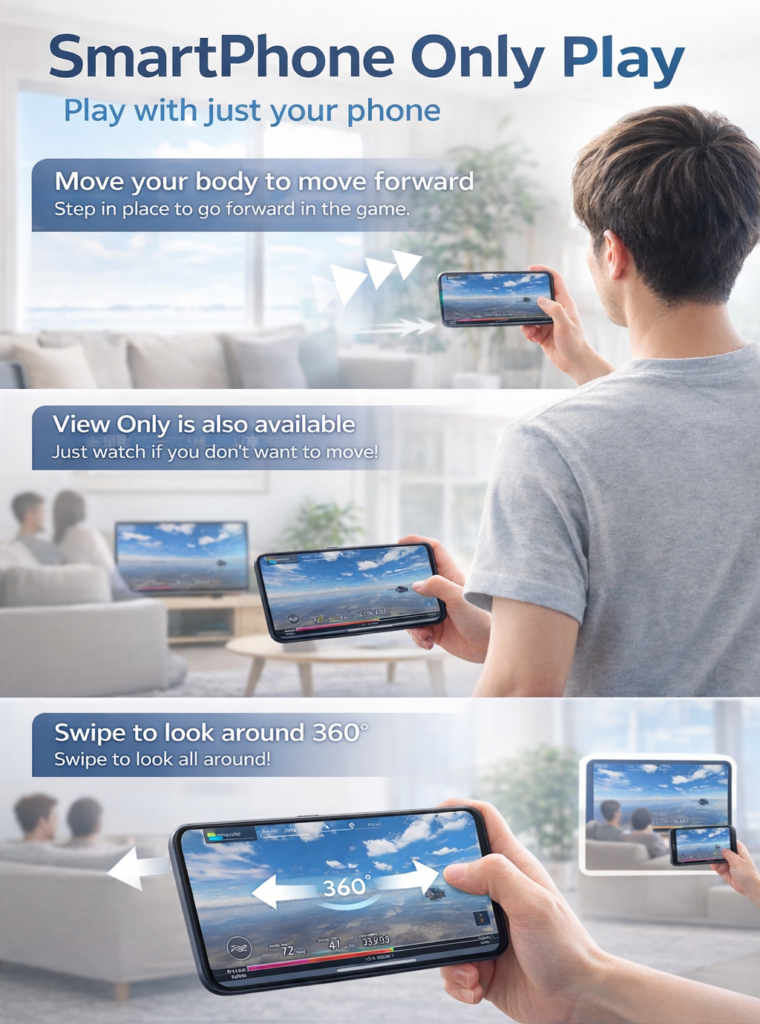
How to Play Using Smartphone Only
① You can play using only your smartphone.
This app allows easy play using just your smartphone.
No special equipment or settings are required.
Hold your smartphone in your hand and play while watching the screen.
② Select “Start” or “View Only Start”
When you select an AREA, the play start screen will appear.
The following buttons are displayed:
・Start:
Play normally on the smartphone screen.
The video advances according to your body movements.
・View Only Start:
A mode for watching the video only without exercising.
Recommended when you want to relax and enjoy the scenery.
③ Move your body to advance the video
Hold your smartphone and look at the screen.
By stepping in place or performing light up-and-down movements, the video moves forward.
You can experience walking through the world according to your movements.
④ Swipe to look around in 360 degrees
Swipe the screen with your finger to freely look around.
Swipe left, right, up, or down to enjoy a 360-degree view.
You can play at your own pace while looking in your preferred direction.
⑤ You can also enjoy viewing only
If you select “View Only Start”, you can watch without exercising.
By using a large smartphone or tablet,
multiple people can enjoy the video together.
Safety Notes
Please ensure sufficient space around you.
We recommend exercising in place without walking around.
Avoid long use or excessive exercise and take breaks as needed.
Please use according to your age and physical condition.
Use at your own responsibility and prioritize safety at all times.
Items That Enhance Enjoyment
・A TV and a device for casting smartphone video to the TV (for TVs that do not support casting)
・VR goggles (affordable ones available online are sufficient)
・A running armband or leg band to secure your smartphone (useful when playing on TV)
・Apple Watch (allows you to play on TV without holding your smartphone)
Playing with Your Own or Others’ Videos
In this app, by selecting the mode called AnotherPlayMode, you can play using your own videos or videos created by others.
*This app uses the accelerometer sensor installed in most smartphones to detect up-and-down movements and recognize them as exercise. Smartphones without gyro or accelerometer sensors may not function properly.
*AnotherPlayMode is outside the scope of guaranteed operation, so please check functionality in advance and use it at your own responsibility.